How to Bulk Download Videos, Photos, and Audio from a Telegram Channel
How to Bulk Download Videos, Photos, and Audio from a Telegram Channel
To bulk download videos, photos, and audio from a Telegram channel, scroll in Telegram Web to the target dates first so the media actually loads; then open Telegram Video Downloader and select items by type and preview, download a small batch first, and finally check the download list against the files. This method only applies to content you are entitled to access and save. It cannot substitute for channel authorization, and it should not be used to bypass content protection.

Concept illustration: it shows videos, photos, and audio going from selection to archiving. It is not a screenshot of the real Telegram or extension interface.
First, choose the bulk method that fits
If the target is just a stretch of media that has already loaded in the current channel, a browser extension is convenient for selecting by preview. If you are backing up a complete chat that you manage yourself or have been authorized to save, Telegram Desktop's official export is better suited to preserving a longer history. For a single public message link, you can start with Telegram online tool.
| Scenario | Recommended method | What it handles | Main limitations |
|---|---|---|---|
| A stretch of video, photos, or audio in the current channel | Telegram Web extension bulk panel | Media already loaded on the page that you are entitled to save | You need to scroll to load first; the interface and the selectable range change with the version |
| Your own chat or a longer history you are authorized to back up | Telegram Desktop export | The chat and its photos, videos, and other media | Requires the desktop client; a newly signed-in device may have to wait or be confirmed from another device |
| A single public message link | Telegram online tool | A single link that can be accessed publicly without signing in | Not suitable for private invites, content behind a login, or protected messages |
The environment reviewed for this article
The information below was verified on August 10, 2026 (UTC+8). This article checked the local browser version, Telegram's official documentation, the Chrome Web Store, and the DownloadVideos365 product page, but did not sign in to a real Telegram account, and did not run download tests on private or protected content.
| Item | Value in this review |
|---|---|
| Operating system | Windows 11 Pro 10.0.26200 |
| Browser | Google Chrome 150.0.7871.188 (desktop) |
| Telegram Web | The official apps page still lists WebK and WebA; the page does not provide a verifiable standalone build number |
| Extension | The Chrome Web Store shows Telegram Video Downloader 2.2.5.8, updated June 8, 2026 |
| Review date | August 10, 2026 (UTC+8) |
| Scope of review | Cross-checking public pages, product steps, and the local environment; download speed, success rate, file limits, quotas, and the ability to handle restricted content were not verified |
Before downloading: prepare scope, permission, and folders
- Confirm you are allowed to save it. Only work with content you published yourself, content the channel owner has explicitly authorized, or content you are legally permitted to save. Being able to see a message does not mean you may copy or redistribute it.
- Define the message range. Write down the channel name, the start and end dates, and the rough media types first, so you do not scroll upward endlessly or select unrelated content by mistake.
- Create local folders. Create folders for the channel name and date first, then split them into
video,image, andaudio, and leave room for a manual verification record. - Check the extension. Open the Chrome Web Store from Telegram Video Downloader extension install page and check the extension ID
gnkkimhkpmldcibibpdhegbjcgdpiakc, the version, the developer website, the permissions, and the privacy disclosure before deciding whether to install it. - Check Chrome download settings. During a bulk task, keep one easy-to-find download folder. Google Chrome's official documentation says you can manage continuous download permission for relevant files under “Settings > Privacy and security > Site Settings > Additional permissions > Automatic downloads”.
Google's extension help recommends approving only extensions you trust, and lets users limit site access to on-click, specific sites, or all sites. For a tool you only use on Telegram Web, narrow the access scope as far as possible to the site and time window needed for the task.
Steps to bulk download videos, photos, and audio
- Open Telegram's official WebK or WebA in Chrome and sign in using the official flow. Verification codes, two-step verification passwords, and session files should only ever be given to Telegram's official pages or clients.
- Go to a channel you are entitled to access and save, jump to near the target date first, then scroll section by section. Only when thumbnails, players, or audio bars appear in full is that media actually part of the currently loaded page.
- Do not scroll through the entire channel in one go. Treat a date or a topic as one batch, and wait until that batch of media has loaded steadily before opening the extension panel.
- Click the extension icon in the Chrome toolbar. The store's current product description describes the bulk flow as: scroll the channel to load media, open the extension, select files, then run “Download Selected”.
- Tick videos, photos, or audio one by one based on previews and type. Do not judge by file name alone; first rule out ad images, channel avatars, repeated forwards, and items outside the target dates.
- Select a small number of media items you are authorized to save and download them as a test, then confirm the save folder, whether the files open, and whether Chrome shows a continuous download prompt.
- Only continue with the next batch once the small batch checks out. During the download, do not close the Telegram tab, clear the page cache, or let the computer sleep.
- Open the Chrome download list and check completed, failed, cancelled, and duplicate items separately. An item only counts as downloaded once the file has landed on disk and opens normally.
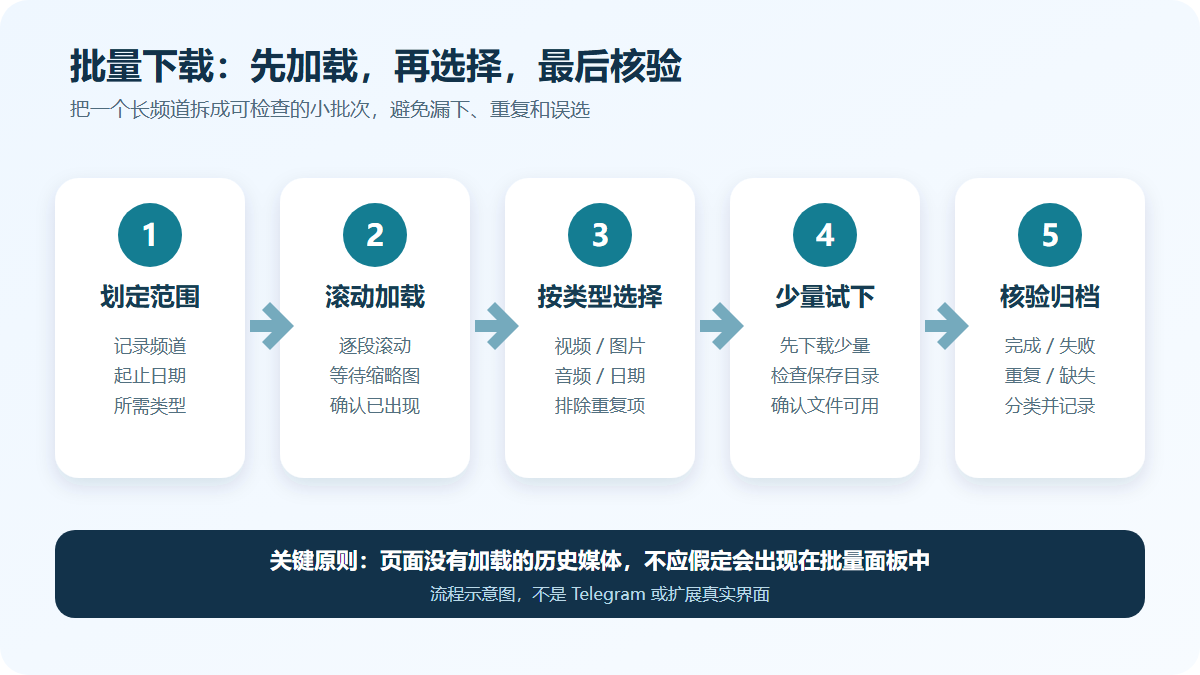
Workflow illustration: it explains “define the scope, scroll to load, select by type, test a small batch, verify and archive”. It is not the real Telegram or extension interface.
For more detail on installing the extension, the single-item button, and basic bulk operations, see Telegram Web video download tutorial.
How to verify each of the three media types
The extension's store page currently lists video, photos, GIFs, and audio as recognized types, but that is the developer's product description, not proof that this article tested every format on every channel. Check the actual files after downloading rather than assuming the result from the marketing copy.
| Media type | What to look at before selecting | How to verify after downloading | Common mis-selections or gaps |
|---|---|---|---|
| Video | Thumbnail, duration, message date, media in the same group | Whether it plays, whether the duration makes sense, whether the file landed on disk complete | Old messages that never loaded, repeated forwards, preview images mistaken for video |
| Photos and GIFs | Preview, message grouping, target date | Whether it opens, whether the resolution matches the original message, whether photos from the same group are missing | Channel avatars, stickers, ad images, or only thumbnails having loaded |
| Audio and voice messages | Audio bar, duration, message description | Whether it plays, whether the sound is complete, whether the local player recognizes the file type | Voice messages mixed in with music files, or messages that have not loaded fully |
If the types or previews in the panel differ from this table, the actual interface of the current version takes precedence. Do not ignore dates, your authorization scope, and local disk capacity just to chase a “select all”.
How to archive after downloading, so gaps are easy to fill
Once the downloads finish, move the files from Chrome's default download folder into the folder for this task, then sort them by media type. Keep a record you build yourself, noting at least the source channel, the message date or link, the local file name, and the verification result. The extension will not necessarily create folders for you, deduplicate, or save message context, so these steps are up to you.
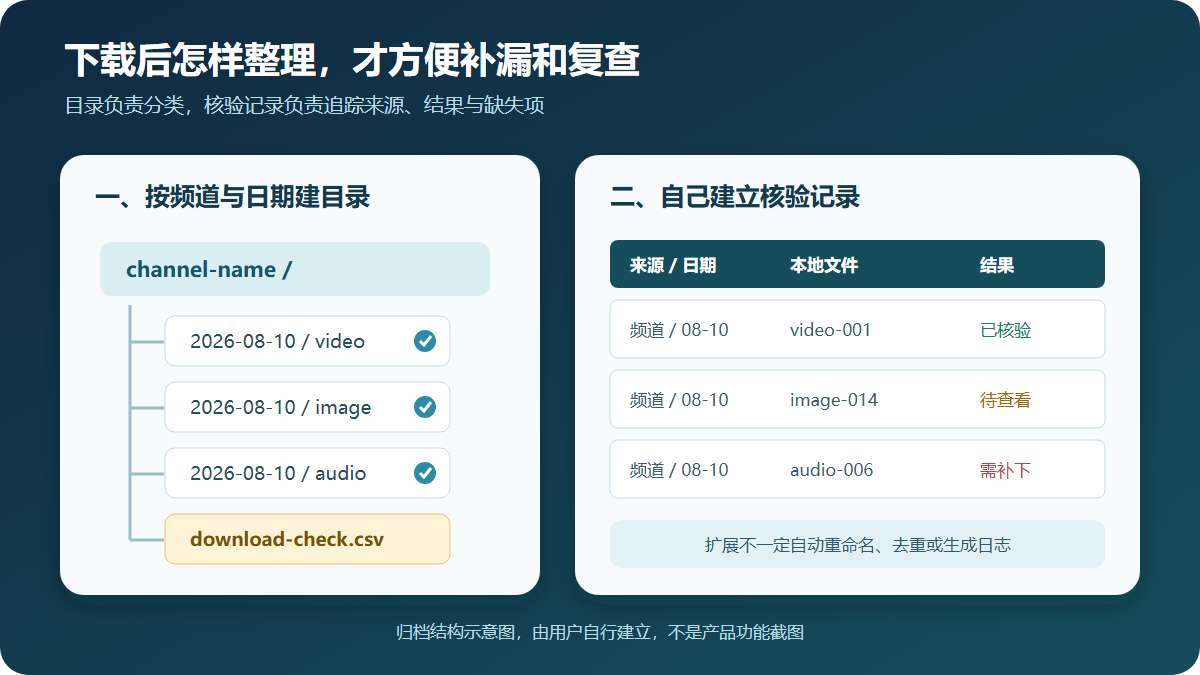
Archiving illustration: the folders and the verification record are created by the user. It does not mean the extension renames, deduplicates, or generates logs automatically.
A reliable verification order is: first count the failures against the Chrome download list, then spot-check that each media type opens, and finally note the missing messages and download only the files that are absent. Do not repeatedly select all and download again, otherwise duplicate file names, repeated copies, and automatic browser renaming will add to the cleanup work.
What to do when the count is short, buttons do not appear, or a batch stops
| Symptom | More likely cause | Suggested action |
|---|---|---|
| The panel shows fewer media items than you see in the channel | Older messages have not been scrolled into view, or the page only retains the current range | Go back to the missing dates, scroll in sections and wait for the media to load; do not assume the extension can scan the entire history remotely |
| Only videos appear, with no photos or audio | Different filter conditions, message types, or extension detection state | Clear the panel filters, refresh the tab, and load just a small range to retest |
| Chrome does not continue downloading after you click | Continuous download permission, organizational policy, a security prompt, disk, or network blocking it | Check the Chrome download list and automatic download settings; do not turn off security warnings to force it through |
| Duplicate files appear mid-download | The same message loaded more than once, repeated forwarded content, or repeated clicks | Pause the next batch immediately, deduplicate by message date and file content, then resume from the missing point |
| A private channel or restricted message has no working save option | You do not have access, or the owner enabled content protection | Stop and contact the owner for authorization or the original files; you can read Explanation of download limits for private channels first |
Limits, privacy, and lawful-use boundaries
Telegram's official content protection documentation states that once a channel or group owner enables protection, the relevant messages should not be forwarded, downloaded, copied, or screenshotted. A third-party extension's marketing cannot change that boundary; when you run into protected content, contact the owner for permission or the original file instead of looking for a workaround.
Telegram's content license terms require users to access user-generated content in a normal, lawful, and expected way, and to respect the copyright terms set by the rights holder. Do not bulk scrape channels that are not yours, redistribute paid courses, collect other people's private information, or use downloaded content for datasets and AI training without explicit consent.
Telegram Video Downloader is a third-party extension, not an official Telegram product. On the review date, the store's product description included developer statements such as “processed locally, no data collected”, but the store's privacy section also lists the data categories it declares it handles. Neither replaces an independent security review. Before installing, re-check the latest permissions and privacy disclosures; when you are finished you can turn off site access or remove the extension. Never give verification codes, two-step verification passwords, or session files to an extension, a bot, or a support agent.
Frequently asked questions
Can I bulk download an entire Telegram channel in one go?
Do not read the bulk panel as an unconditional export of a whole channel. The store's current steps require scrolling so media gets detected, so the selectable range usually depends on the messages already loaded on the page, your account's access rights, the current extension version, and Chrome's download policy. When you need to systematically back up a chat you own or are authorized to save, consider the official export in Telegram Desktop.
How do I download only one of videos, photos, or audio?
Load the target date range completely first, then tick items in the current extension panel by type, by preview, or one by one. Interface filters may change between versions; if there is no reliable type filter, select manually in small batches and verify in local video, image, and audio folders.
Why does the extension detect fewer files than the channel contains?
The most common reason is that older messages or media still have not loaded. Go back to the missing dates, scroll in sections, and wait for thumbnails, players, or audio bars to appear, then reopen the panel. Items affected by access rights, content protection, or page compatibility changes will not become available just because you refresh repeatedly.
Chrome is asking whether to allow multiple automatic downloads. What should I choose?
Grant it only when you have confirmed that the page, the extension, and this batch of files are all trustworthy, and only for as long as this task needs it; you can revoke it afterwards in Chrome's automatic download settings. A work or school computer may have continuous downloads blocked by an administrator, and you should not bypass organizational policy or security warnings.
What is the difference between bulk downloading with an extension and exporting from Telegram Desktop?
An extension is better suited to a stretch of media already loaded on the current web page that you want to pick by preview; Telegram Desktop's official export can save some or all of an authorized chat and its media, and outputs HTML or JSON. Neither can grant channel access, and neither can turn protected content into freely copyable content.
Can private channels or content that is not allowed to be saved be bulk downloaded?
A private channel must first be joined legitimately by your account; if the owner has enabled content protection, stop downloading and ask for explicit permission or the original files. Having joined, having paid, or using it only for personal purposes does not automatically mean you have the right to copy, archive, or redistribute it.
Sources and update time
This article was last verified on August 10, 2026 (UTC+8). Telegram Web, the extension version, buttons, quotas, permissions, and privacy disclosures can all change; before you act, refer to the pages as they are that day.
- Telegram official apps list: WebK and WebA
- Telegram official: Chat Export Tool
- Telegram API: Content protection
- Telegram content license terms
- Chrome Web Store: Telegram Video Downloader
- Google Chrome Help: install and manage extensions
- Google Chrome Help: download files, automatic downloads, and the save location
- DownloadVideos365: Telegram Video Downloader extension page
- DownloadVideos365: Telegram online tool