Telegram Video Download Failing? 8 Common Causes and Fixes
Telegram Video Download Failing? 8 Common Causes and Fixes
When a Telegram video won't download, start with the same small, authorized video that plays normally as a baseline: check Telegram's native save, the extension button, Chrome download records, automatic download permissions, and local disk in order. Most problems come from access or content protection, a page that hasn't loaded, extension site permissions, WebK/WebA compatibility changes, browser blocking, network interruptions, or save folder issues.
This guide only covers content you have the right to access and save. If the message owner has enabled content protection, or your account doesn't have channel access, the correct approach is to request permission or ask for the original file—not to try to bypass the restriction.
Take 3 minutes to determine which layer is failing
Don't change the network, browser, extension, and download folder at the same time—otherwise, even if it recovers, it's hard to know the real cause. Change only one variable at a time in this order:
- Open a small video that you uploaded, that is publicly accessible, or that you have explicit permission to save, and wait for it to play through.
- First try Telegram's built-in download or save entry, then the extension button.
- Open Chrome downloads (on Windows, press
Ctrl+J) and check whether there is a failed, canceled, blocked, or completed record. - If only the extension fails, check whether the extension is enabled and whether it is allowed to access
web.telegram.org. - If the first item succeeds but later batch items don't start, check Chrome's "Automatic downloads" permission.
- If the same message behaves differently in WebK and WebA, note the specific version and page location, then switch versions and retest.
- If Telegram's native download also fails, check account permissions, message status, network, browser security warnings, and disk first rather than just reinstalling the extension.
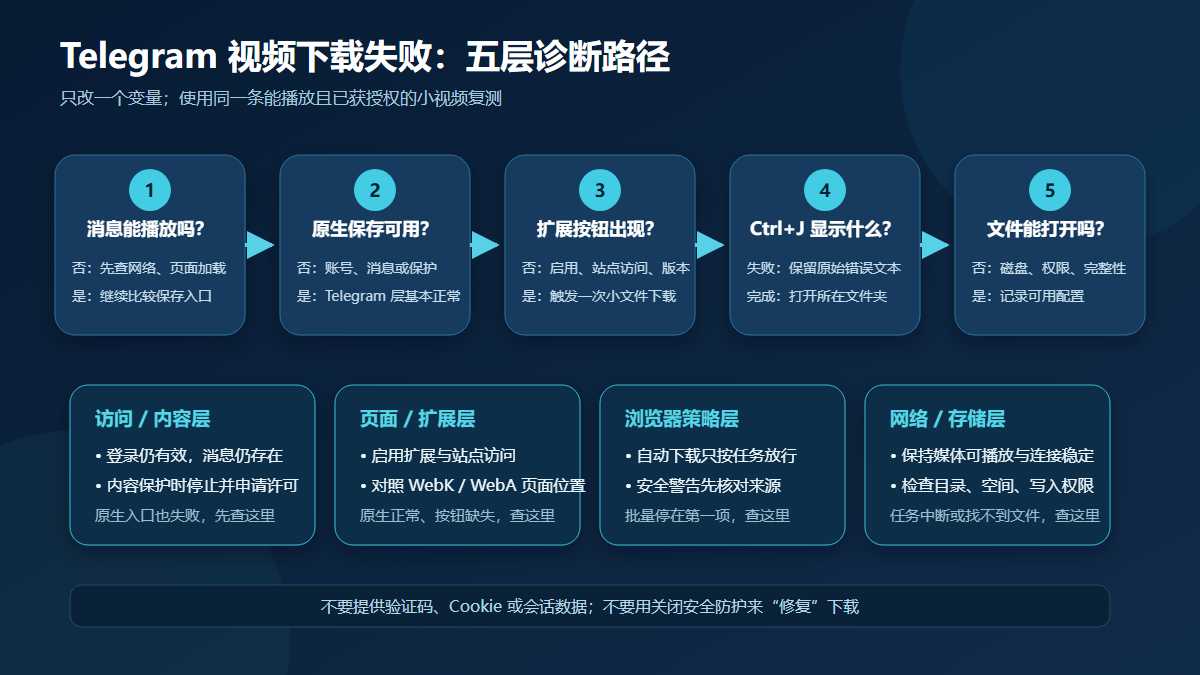
The image above is a diagnostic flow diagram, not a screenshot of the real Telegram, Chrome, or extension interface.
8 common causes, symptoms, and first-step fixes
| Common symptom | More likely cause | What to do first | Suggested fix |
|---|---|---|---|
| Video keeps spinning, and neither native download nor the extension starts | Unstable network, or media hasn't finished loading | First confirm whether text messages and small images load, then wait for the video to play | Pause other large downloads, restore a stable network, refresh the page once, and retry; don't click repeatedly and create duplicate tasks |
| Only one message fails, with an authorization, forbidden, or file-not-found message | The account has no access, the login session expired, the message was deleted, or the source file is unavailable | Open the original message with the same account and confirm it still plays | Sign in again through Telegram's official page; if you have no access, contact the channel or content owner |
| The native save entry disappears, and forwarding and copying are also restricted | The owner enabled Telegram content protection | Compare other ordinary messages in the same channel and see whether a uniform restriction applies | Stop downloading and request explicit permission or ask the owner for the original file |
| Telegram native download works, but the extension button doesn't appear at all | The extension is turned off, broken, or lacks access to the current site | Open Chrome's "Manage extensions" and check the enabled state and site access | Enable the extension, grant only the web.telegram.org access scope needed for the task, then refresh the page |
| The button appears only in chats, disappears on media pages, or WebK/WebA behave differently | Telegram Web page structure update or extension compatibility change | Retest WebK and WebA separately on the same message and note the page location | Update Chrome and the extension, reload; use the currently working official Web version and report reproducible information to the extension's support |
| A single file downloads, but the second or a batch task doesn't start | Chrome blocks consecutive automatic downloads | Check the address bar prompt and go to "Automatic downloads" in site settings | Allow only the trusted current site as needed for the task, and revoke it afterward; on managed devices, contact the administrator |
| Chrome shows "Download blocked," "Network failure," or a virus scan warning | Safe Browsing, system security policy, antivirus software, or an untrusted download triggers the block | Note the original error text in the download records | Don't turn off security protections to force it through; verify the source, check system or organizational policy, and contact the site or extension support if needed |
| The download shows as complete but the file can't be found, or it reports disk full or insufficient permissions | The save location changed, disk space is insufficient, or the target folder isn't writable | Click "Show in folder" in Chrome's download records | Check the default download directory, free space, and write permissions; switch to an accessible ordinary folder and try again |
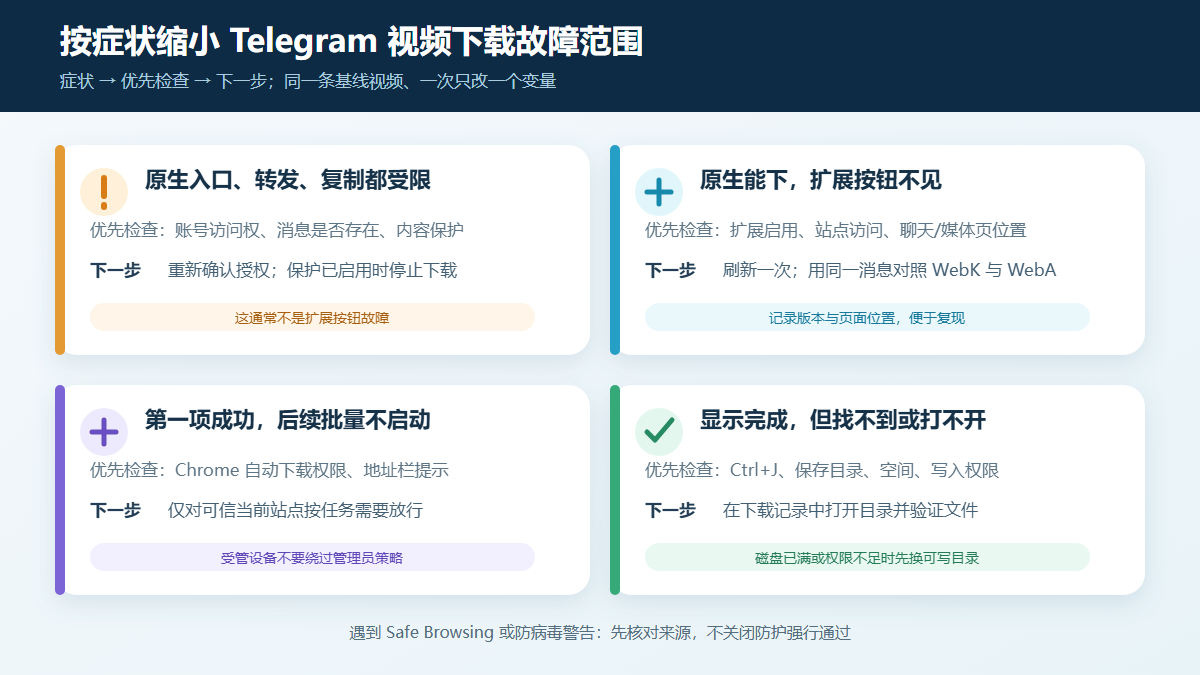
The image above is for narrowing down the issue by symptom; it is an informational diagram and does not represent any real product interface.
Cause 1: Media hasn't finished loading or the network dropped
The extension can only process media that the browser has actually obtained. A thumbnail appearing doesn't mean the video file is already available; if the player is still spinning, both Telegram's native download and the extension may fail. Chrome's official help also lists the network connection as one of the first things to check when a file download fails, and notes that interrupted tasks can sometimes be resumed from the download records.
A reproducible check is: choose a small video you have the right to save and wait for it to start playing; check whether a download record appears in Ctrl+J; then try another message from the same source. If all media is slow, the problem is more likely the network or Telegram page state; if only one fails, continue checking the message and permissions.
Cause 2: Login, message, or channel access changed
"Authorization required," "forbidden," or "file not found" shouldn't be blamed on the extension right away. Go back to the original message location and confirm that the current account is still in the channel, the message hasn't been deleted, and the video still plays. Sign-in should only be done in Telegram's official client, WebK, or WebA; never give verification codes, two-step verification passwords, QR code sessions, or exported files to third-party pages, bots, or support.
For a public single-message link, you can try the on-site Telegram online tool, but messages that require login, a private invite, or that have expired can't be accessed just by pasting a link.
Cause 3: Content protection is supposed to disable saving
Telegram's official Content protection documentation states that groups, channels, or protected messages can restrict downloading, copying, forwarding, and screenshots. In that case, "no download button" is a permission boundary, not an error to crack. For a more detailed assessment, see Explanation of Telegram private channel download restrictions.
Even if you have joined the channel, paid for access, or only intend personal use, that doesn't automatically mean you have permission to copy or redistribute. Contact the owner first and obtain explicit authorization or the original file.
Cause 4: Extension not enabled or missing site access
If Telegram's built-in download works and only the extension button is missing, open "Extensions → Manage extensions" in the Chrome menu and check:
- Whether the extension toggle is on and whether Chrome marks it as corrupted or no longer supported.
- Whether the extension ID is
gnkkimhkpmldcibibpdhegbjcgdpiakcfor the current store listing. - Whether "Site access" allows the current
web.telegram.orgpage. - Whether you are currently in a guest or extension-free browsing environment.
You can verify the listing from Telegram Video Downloader extension installation page in the Chrome Web Store. On August 13, 2026, the store showed version 2.2.5.8, updated on June 9, 2026. Versions, permissions, and disclosures may keep changing, so the store page on the day you install should be authoritative.
Cause 5: WebK, WebA, or page location compatibility changes
Telegram's official app page lists both WebK and WebA; they are two independent web clients, and their page structure and update cadence may differ. Telegram's public issue tracker once recorded a video detection difference between WebK/WebA in chats and media pages, and the issue is marked Fixed; this suggests that "the button exists in chats but not on media pages" may be a page-location or version-compatibility problem, but it doesn't mean all users currently have the same failure.
The correct way to retest is to use the same account, the same message, and the same Chrome configuration, and switch only the Web version. If WebK works but WebA doesn't, note the version, message type, page location, and reproduction steps, then report them to the extension's support. Basic installation and single-download steps can be checked alongside Tutorial on downloading videos from Telegram Web.
Cause 6: Chrome blocked multiple consecutive file downloads
Bulk downloads usually create multiple file tasks in a row. Chrome's official help offers the "Privacy and security → Site settings → Additional permissions → Automatic downloads" setting; when the first file succeeds but the second doesn't start, check here and the address bar prompt first.
Allow only the sites you trust for the current task as needed, and don't treat "allow all sites to download multiple files automatically" as a long-term default. Policies on work or school computers may be managed centrally by administrators, and users shouldn't bypass organizational restrictions. For bulk selection, small trial downloads, and verification methods, see Tutorial on bulk downloading media from Telegram channels.
Cause 7: Chrome or system security features block it
Chrome shows warnings for downloads from dangerous, suspicious, unverified, or unsafe sources. If the download records show "Download blocked," "Virus scan failed," or similar messages, first verify the file source and extension listing, and check the reason given by your system antivirus software or organizational policy. Don't disable Safe Browsing, antivirus software, or ignore unknown-file warnings just to finish the download.
If the error is NETWORK_FAILED, Forbidden, or "authorization required," keep the original error text and the time it occurred—it's more useful for diagnosis than a vague "won't download." When reporting a problem, don't include Telegram verification codes, cookies, session data, or private channel content.
Cause 8: The file downloaded, but the save location or disk has a problem
Chrome download records are the basis for judging whether it "really completed." Click "Show in folder" next to the entry; don't search only the desktop or recent files. Chrome's official help lists the default locations as \Users\<用户名>\Downloads on Windows and /Users/<username>/Downloads on macOS, but users can change the default directory or enable "Ask where to save each file before downloading."
If you see "disk full," "insufficient permissions," or "system busy," free up space or switch to an ordinary directory you know is writable. Don't use system directories, network drives with synchronization issues, or folders with unknown permissions as your first troubleshooting target.
Record this information when retesting
To make the problem reproducible, test only one authorized small video at a time and record:
| Item | Verified value or recording method in this article |
|---|---|
| Test date | August 13, 2026 |
| Operating system | Windows 11 Pro, version 10.0.26200 |
| Browser | Google Chrome 151.0.7922.76 |
| Telegram WebK | Current public production resource value is 2.2 (build 668) |
| Telegram WebA | Current public production resource value is 12.0.38 |
| Extension | Chrome Web Store listing version 2.2.5.8, extension ID gnkkimhkpmldcibibpdhegbjcgdpiakc |
| Message conditions | Whether it plays, whether there is a native save entry, whether it is public or authorized, and whether it is in a chat or on a media page |
| Chrome result | Original status, error text, file name, and save folder in Ctrl+J; don't record account keys or session data |
The above is the verification environment for public entry points, front-end resources, store pages, and failure paths, and does not represent individual testing of any private or protected channel. Telegram Web and extensions update dynamically; when reporting a problem, re-read the version shown on your page at that time.
Permissions, privacy, and lawful-use boundaries
- Save only content you own, that is publicly allowed to be downloaded, or for which you have obtained explicit authorization, and comply with local laws and the rights holder's copyright terms.
- Extensions and online tools cannot join private channels for an account, nor can they change Telegram's content protection settings.
- Don't give third parties verification codes, two-step verification passwords, login QR codes, cookies, session files, or full chat exports.
- When Chrome or security software shows a warning, find out why first; don't treat disabling protections as a routine fix.
- If a store listing shows a free-tier quota, account status, or payment prompt, the extension's explicit interface at that time should be authoritative; this article does not speculate about specific quantities, file limits, speed, or success rates.
Frequently asked questions
Why did the download button for a Telegram video suddenly disappear?
First confirm whether the native save entry is also gone. If only the extension button is missing, check the extension's enabled state, web.telegram.org site access, and whether you are currently in a chat or on a media page; if the native entry, forwarding, and copying are also restricted, it's more likely content protection or account permissions rather than a button failure.
What should I do if the download always stops midway?
First go to Ctrl+J to see whether it was paused, a network failure, blocked, or canceled. Retest with a smaller, playable video, pause other large downloads, and keep the page open; if the native download also stops, check the network, message status, and Chrome errors first, and don't keep creating duplicate tasks.
Why does only the first file succeed in a bulk download?
This is usually worth checking Chrome's "Automatic downloads" permission and the address bar prompt first. Allow only the trusted current site as needed for the task, and verify with two or three authorized files first; restrictions on managed devices should be handled by the administrator.
Chrome says the download is complete, but where is the file?
Open Chrome download records and click "Show in folder." The default is usually the system Downloads folder, but the location may have been changed, or each download may ask you to choose a folder; also check the remaining disk space and write permissions on the target folder.
Can I switch between WebK and WebA to troubleshoot?
Yes. Telegram's official app page lists both WebK and WebA. Retest with the same account, the same message, and the same browser configuration, and note which version and which page location has the problem; switching versions doesn't grant extra channel permissions.
Can private channel or save-disabled videos also be fixed with these methods?
The troubleshooting steps apply only when the account has lawfully joined and the content owner permits saving. If content protection is enabled or you don't have access, stop and request permission or the original file; technical tools cannot turn permission restrictions into content that can be lawfully downloaded.
Sources and update date
The following pages were all visited or reviewed on August 13, 2026:
- Telegram official app list: WebK and WebA
- Telegram official API: Content protection
- Telegram content licensing terms
- Telegram issue tracker: WebK/WebA media page detection difference
- Chrome official: Install and manage extensions
- Chrome official: Download files, automatic download permissions, and save location
- Chrome official: Fix file download errors
- Chrome Web Store: Telegram Video Downloader
Update date: August 13, 2026. Information about versions, permissions, page structure, and product plans may change; refer to the current day's pages on Telegram, Chrome, and the extension store.