Telegram Video Downloader Complete Guide: 7 Ways to Easily Download Telegram Videos (2026 Latest Version)
Telegram Video Download Complete Guide: 7 Ways to Easily Save Videos (2026 Latest Version)
Telegram has become one of the most important content sharing platforms in the world. Educational courses, movie clips, channel updates, community tutorials, and personal chat videos may all be disseminated through Telegram. The problem is that when you want to save these videos for offline viewing, it's not always as simple as clicking once.
Some channels restrict forwarding and saving, some videos only display download buttons on specific devices, and some content comes from private channels that cannot be directly processed by conventional online tools. This article summarizes 7 common and actionable methods to help you choose the appropriate Telegram video download solution based on your device, permissions, and usage scenario.
Quick conclusion
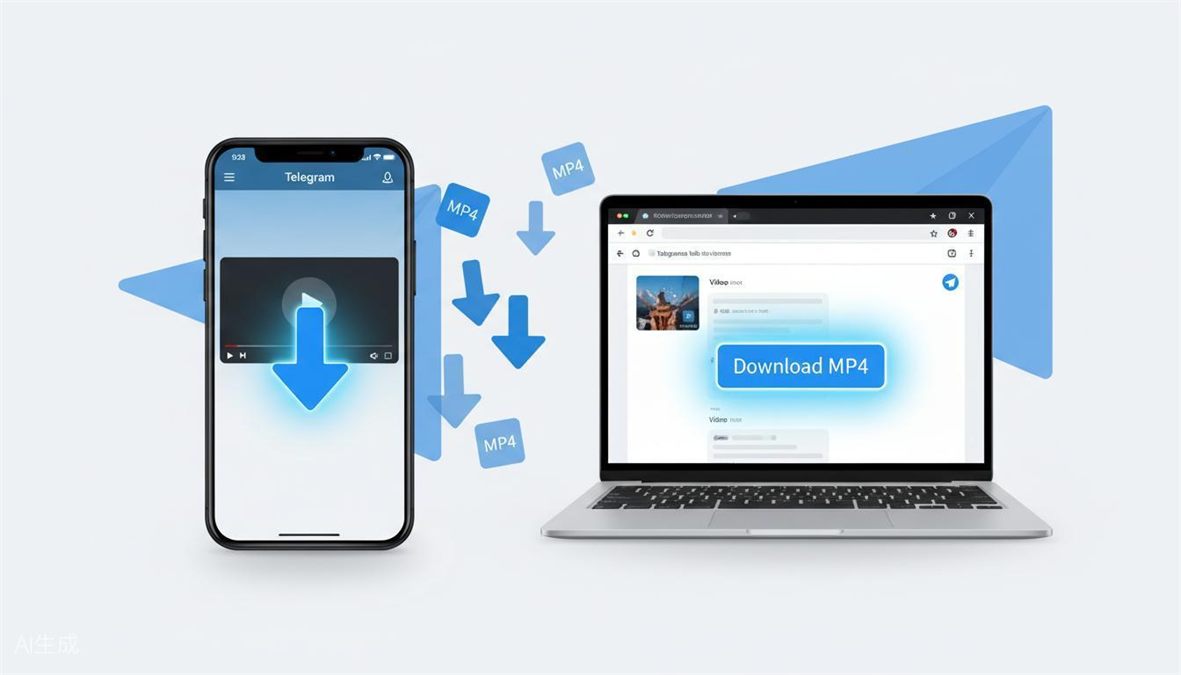
If the video allows saving, prioritize using Telegram's built-in save function, which is the safest and most stable way. If the built-in save is not available, you can try downloading the robot, browser extension, or online download tool. For restricted channels, private channels, or scenarios where all tools fail, screen recording is usually the last resort.
| Usage Scenarios | Recommended methods |
|---|---|
| Public video, I want to save it quickly | Telegram built-in save |
| Frequently handling videos within Telegram | Download Robot |
| Frequently using Telegram Web | Browser extension |
| Do not want to install software | Online download website |
| Desktop processing of restricted content | Neet Nestor script |
| Android has fully played the video | Android Cache File Method |
| Any method fails | screen recording |
Why downloading Telegram videos can sometimes be troublesome
Telegram has strong flexibility, but this also makes video downloads complicated. It supports large channels, private groups, bots, large files, cross device synchronization, and multiple privacy settings. The saving permissions for different videos may be determined by channel administrators, chat types, device systems, and Telegram client versions.
Common obstacles include:
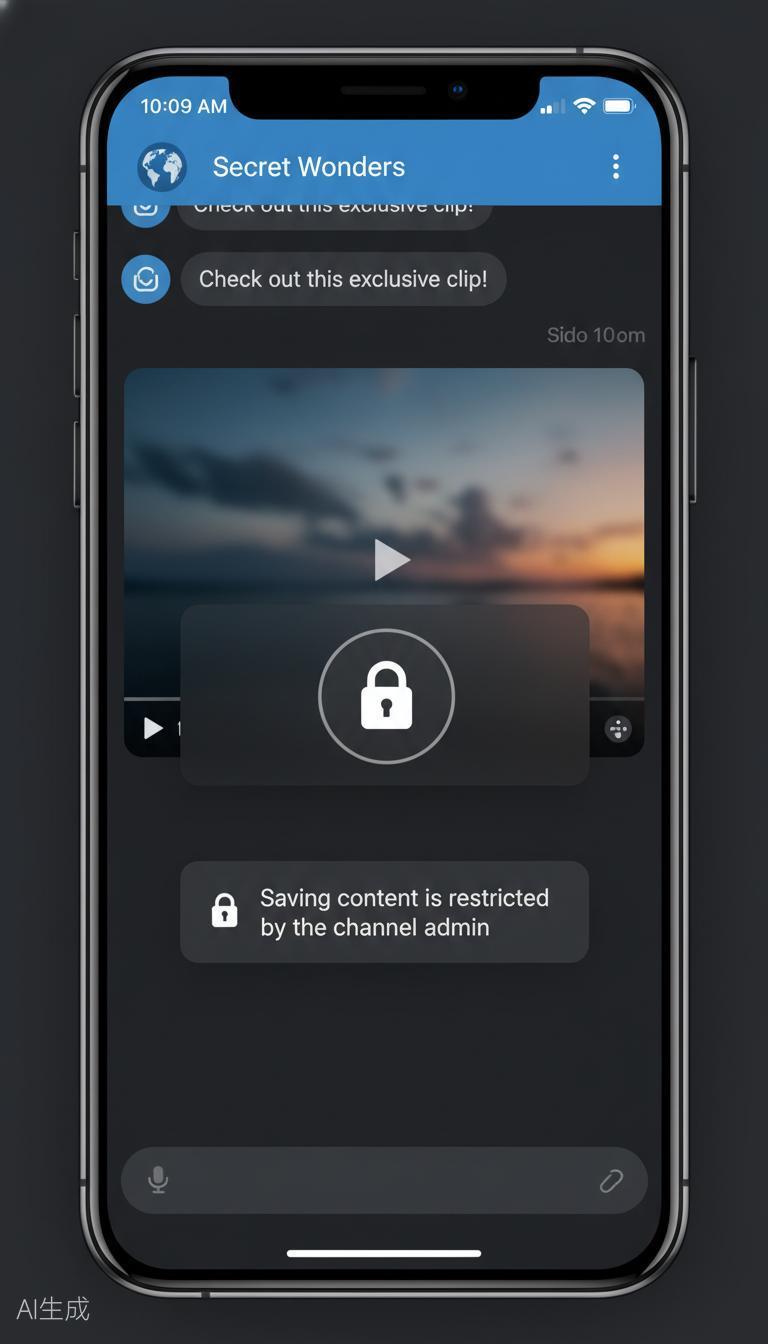
- Channel administrators prohibit forwarding or saving media.
- Private channel videos are not publicly available and cannot be accessed by regular link download tools.
- The save entry displayed on the mobile and desktop devices is different.
- The video needs to be fully loaded before the save option appears.
- Third party robots or scripts may become invalid due to Telegram updates.
Method 1: Use Telegram's built-in save function
This is the most recommended first choice. As long as the channel is not prohibited from saving, Telegram's built-in save function is sufficient and will not compromise video quality.
Android Save Method
- Open a chat, group, or channel containing a video.
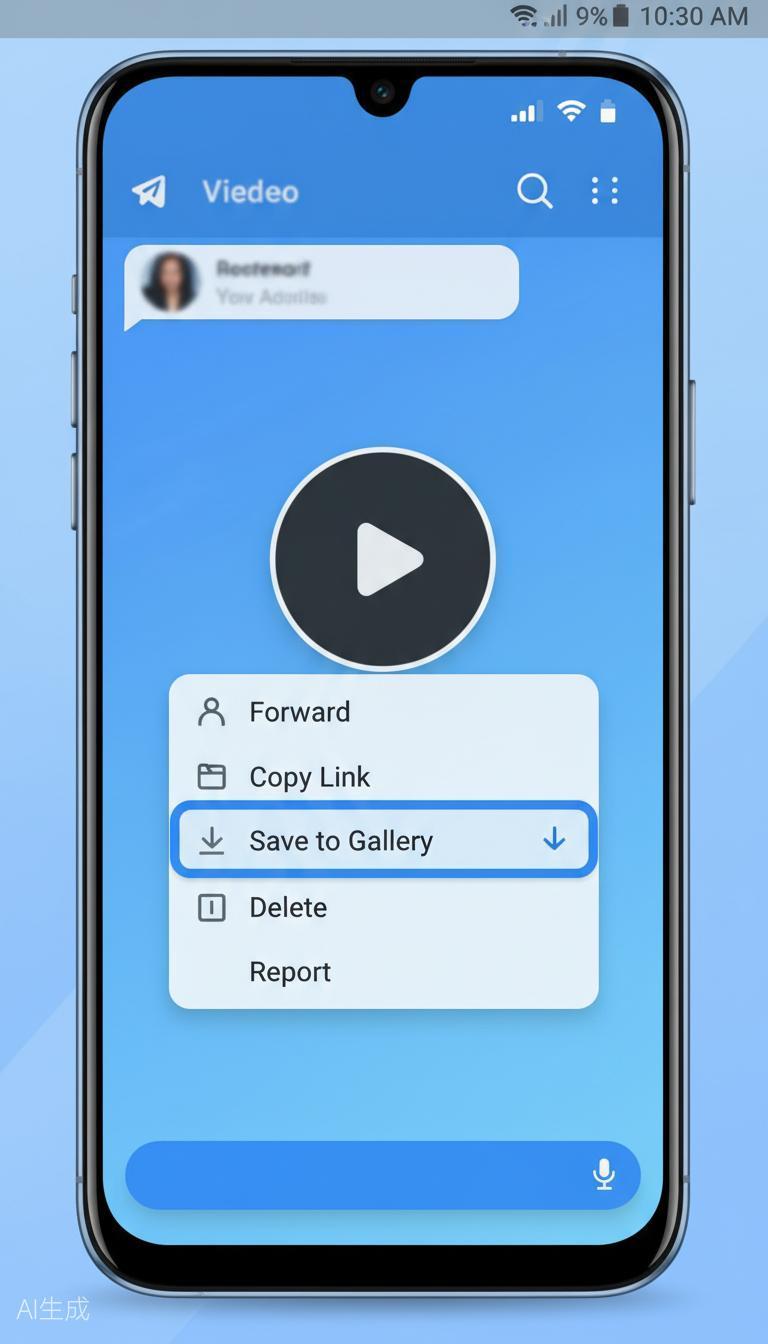
- Long press the video for 1-2 seconds and wait for the menu to pop up.
- Select 'Save to Album' or similar options.
- The video will be saved to the album or download directory.
How to save on iPhone or iPad
- Long press the video during the chat.
- Select 'Save Video' from the pop-up menu.
- Waiting for the video to be written into the photo application.
If the video is large, it is recommended to wait for it to load completely first. Otherwise, the save button may not appear immediately.
Desktop or web version saving method
- Open Telegram Desktop or Telegram Web.
- Move the mouse over the video.
- Click on the download icon.
- The video will be saved to the default download directory on the computer.
Advantages:
- Easy to operate, no additional tools required.
- The saved video is usually in its original quality.
- Android, iPhone, Windows, Mac can all be used.
- The highest level of security.
Disadvantages:
- After the administrator disables saving, it may not be available.
- Not suitable for downloading a large number of videos in bulk.
Method 2: Download the robot using Telegram
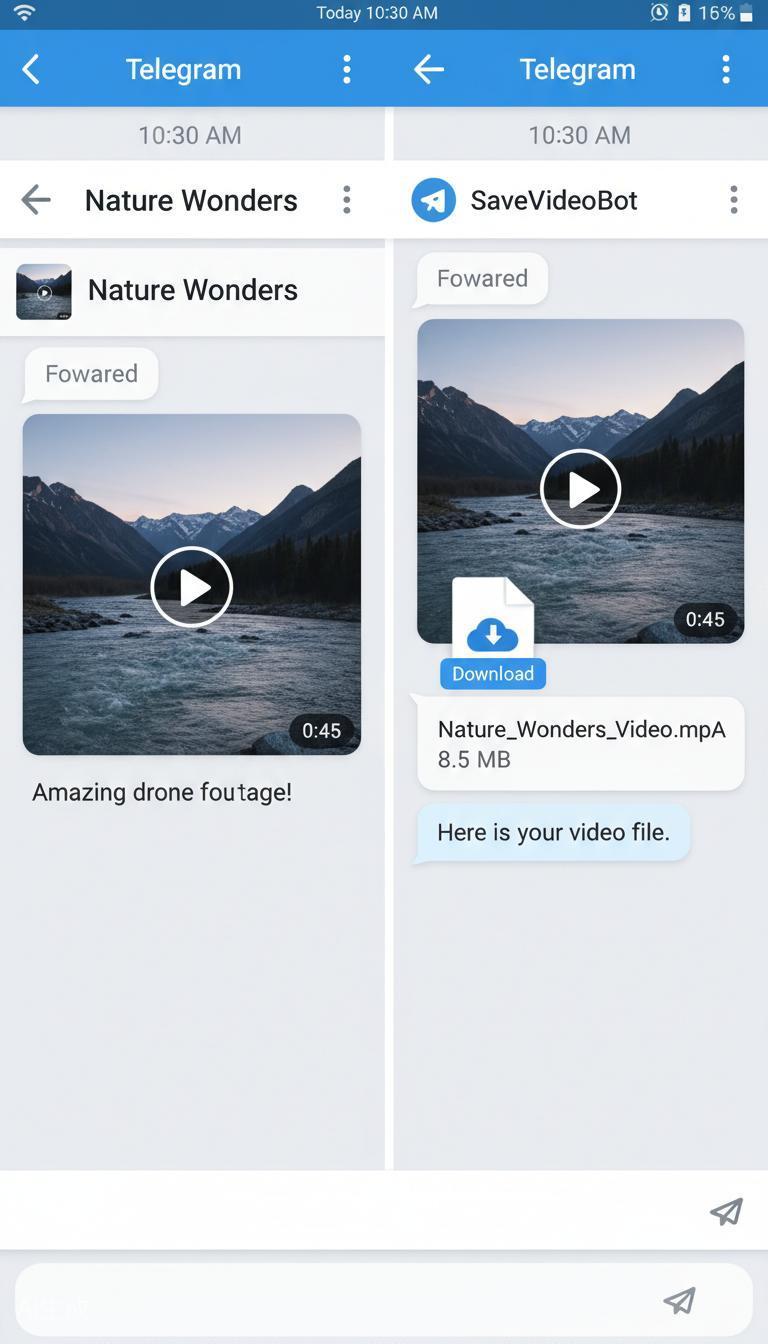
When the built-in save is unavailable but the video still allows forwarding, downloading the robot is a convenient option. You don't need to leave Telegram, just forward the video message to the robot, and it may return a storable file.
Common types of robots include:
| Robot type | Suitable scenarios | Notes |
|---|---|---|
| Video saving robot | Ordinary video download | The peak period may be slower |
| Multimedia saving robot | Video, audio, document | Pay attention to file size restrictions |
| Link parsing robot | Public link processing | Private channels are usually not applicable |
Usage steps:
- Search for video download bots on Telegram.
- Open the robot chat and click start.
- Forward the video message that needs to be downloaded to the robot.
- Wait for the robot to process and return the file.
- Save the video returned by the robot.
Security Reminder: Do not provide Telegram login verification codes, phone numbers, account passwords, or sensitive personal information to any robot. Legitimate download robots do not require these contents.
Method 3: Use Chrome or Edge browser extensions
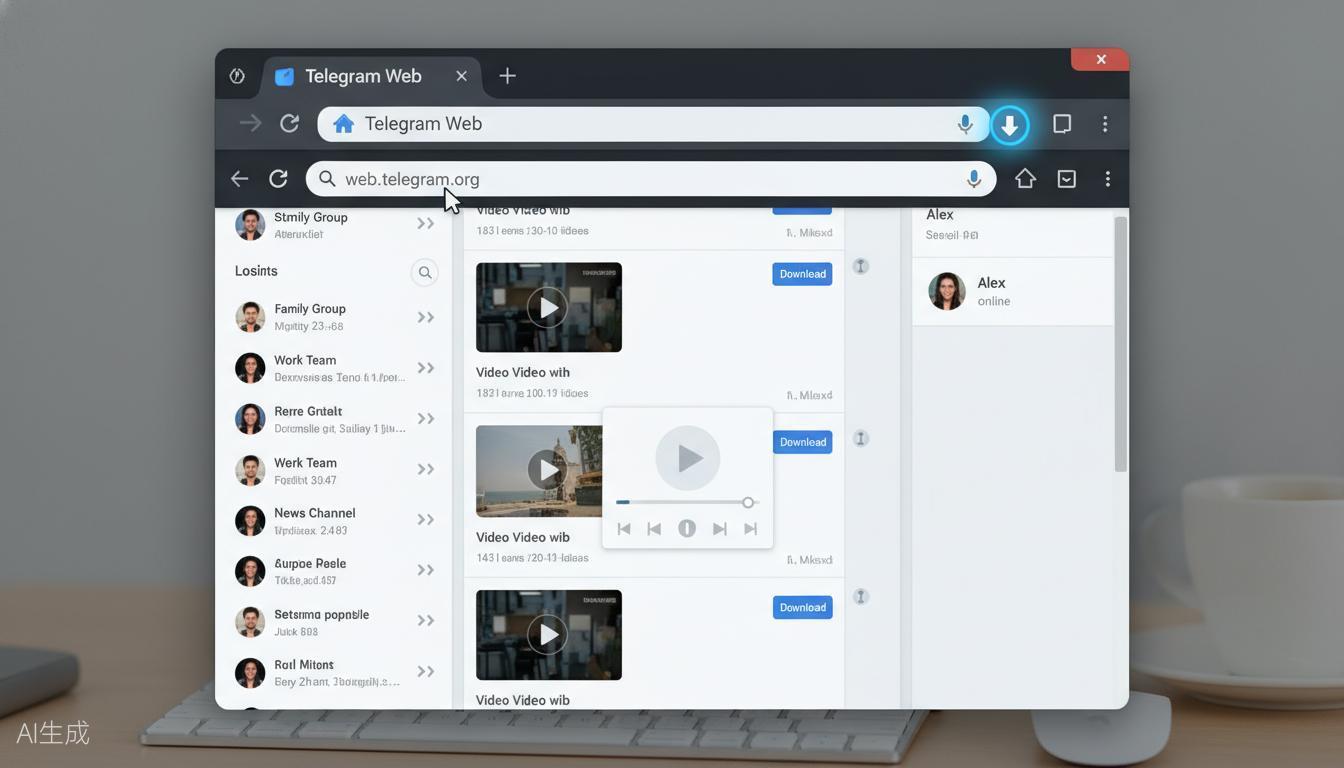
If you frequently use Telegram Web, browser extensions will be much more convenient than manually searching for files. Extensions typically add a download button on Telegram web pages, allowing you to save videos directly.
Before recommending use, confirm that the extension comes from the official store and check the ratings, reviews, update time, and permission scope. The fewer permissions and clearer sources, the lower the risk.
Basic steps:
- Install Telegram download extension on Chrome Web Store or Edge extension store.
- Open Telegram Web and log in to your account.
- Enter a chat or channel containing videos.
- Check if there is a download button near the video.
- Click to download and save to your computer.
Advantages:
- Suitable for users who frequently use Telegram Web.
- The operation is intuitive and the download entrance is obvious.
- Can improve batch processing efficiency.
Disadvantages:
- Only suitable for desktop browsers.
- The extension may become invalid due to Telegram Web updates.
- It is necessary to carefully check the extension permissions.
Method 4: Use the online Telegram video download tool
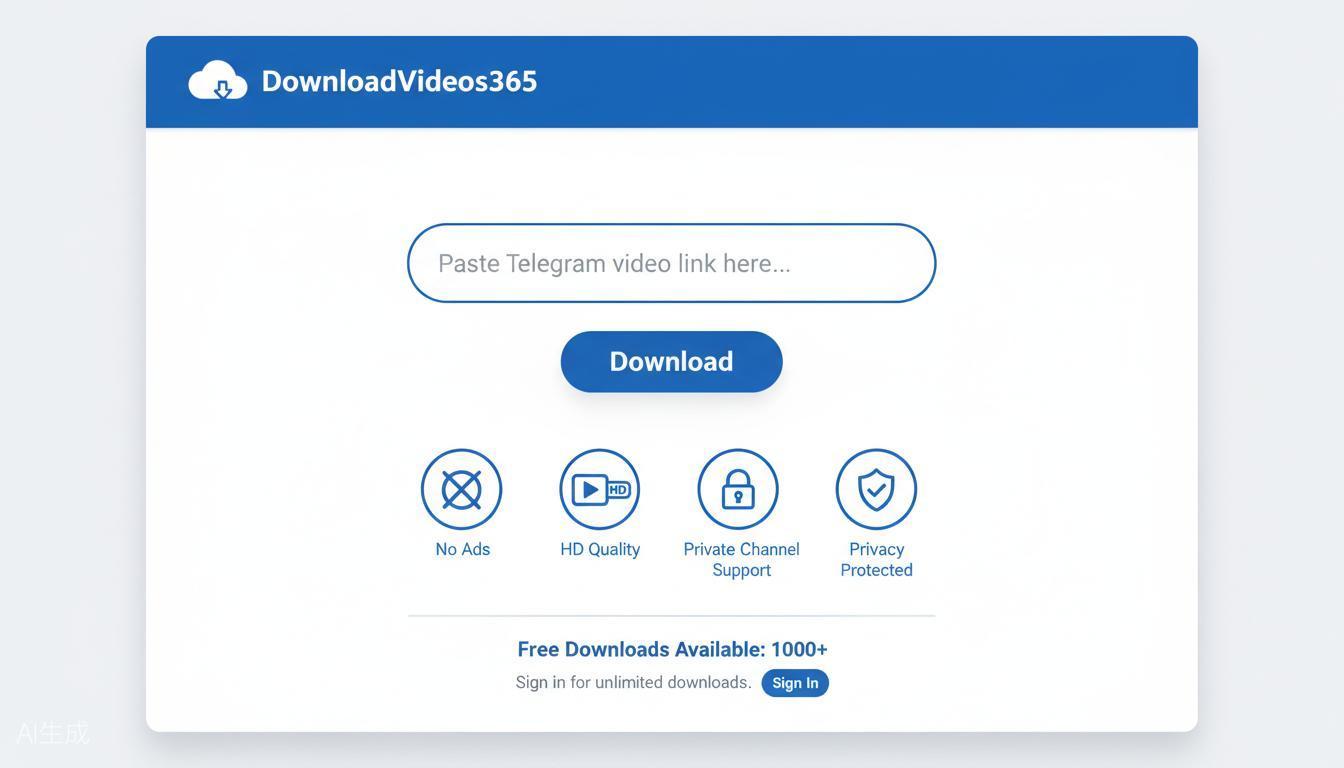
If you don't want to install extensions or software, you can use online download tools. Taking the Telegram download page of DownloadVideos365 as an example, users only need to copy the video link and paste it into the webpage for processing.
Suitable scenarios:
- Temporarily download public videos.
- I don't want to install browser extensions.
- Operate in mobile, tablet, or computer browsers.
- I hope to use web tools to uniformly process videos from different platforms.
Usage steps:
- Find the target video in Telegram.
- If the video supports sharing, copy the video link.
- Open the Telegram download tool page of DownloadVideos365.
- Paste the link and click download.
- Select the save format or image quality according to the page prompts.
Advantages:
- No need to install software.
- Supports multiple device browsers.
- Low threshold for use.
- Suitable for users who occasionally download videos.
Disadvantages:
- Private channels or videos without public links are usually not processed.
- There may be daily free quotas or usage restrictions.
- You must choose a trustworthy website to avoid leaking links and privacy.
Method 5: Use Neet Nestor Userscript
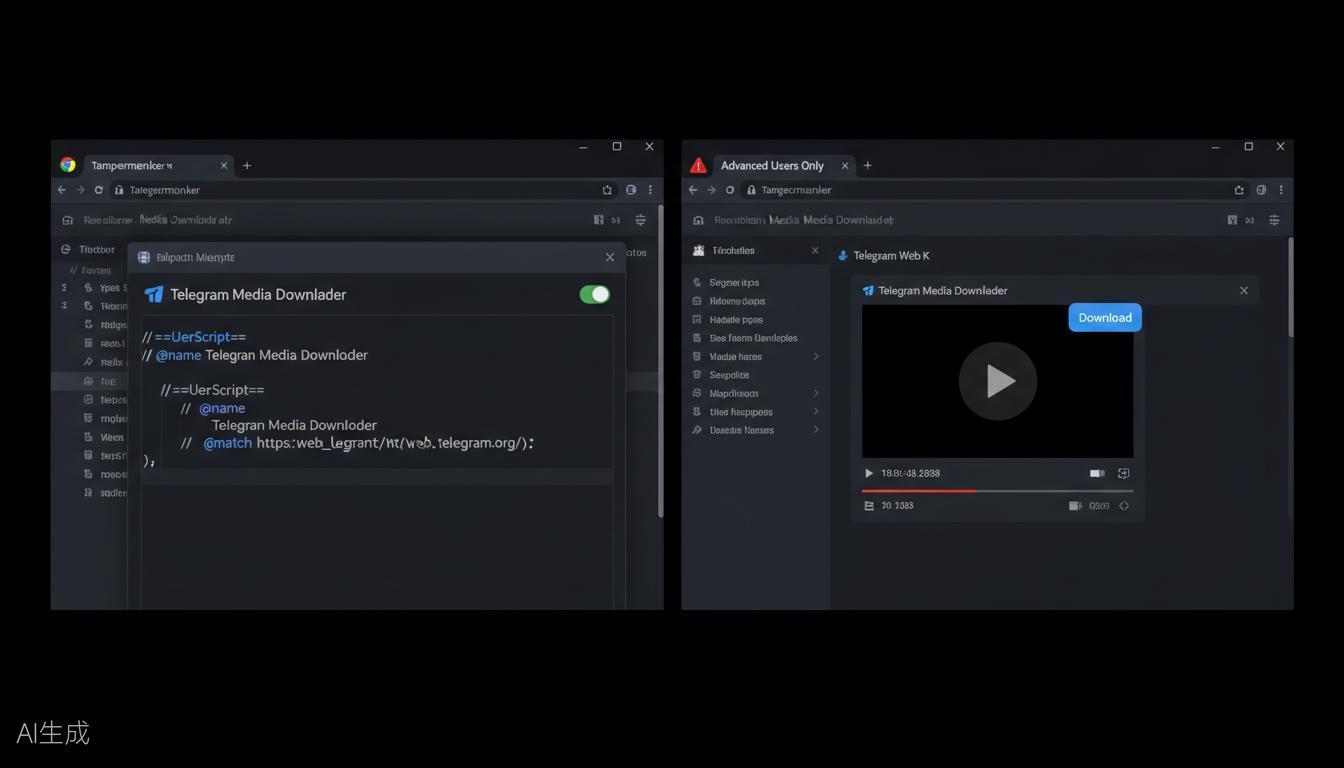
Neet Nestor Userscript is a solution designed for advanced users. It usually works with script managers like Tampermonkey to add media download capabilities in Telegram Web. Its advantage is flexibility, but the threshold is also significantly higher.
Suitable for:
- Familiar with browser extensions and user scripts.
- Can distinguish between different versions of Telegram Web.
- Can accept script invalidation, conflict resolution, and waiting for updates.
- Need to handle some content that cannot be saved by ordinary methods in desktop browsers.
Installation process:
- Install Tampermonkey or a similar script manager.
- Go to the script publishing page to confirm the source of the script and the latest update time.
- Install the script and open Telegram Web.
- Confirm that the current version of Telegram Web is compatible with the script.
- Find the video and test if a download portal appears.
Risks and Limitations:
| Question | Explanation |
|---|---|
| High technical threshold | Ordinary users may be stuck in installation, version selection, or permission configuration |
| Compatibility is unstable | Script may become invalid after Telegram Web update |
| Only suitable for desktop browsers | Mobile devices usually cannot be used |
| Difficult security review | Users who do not understand the code find it difficult to determine whether the script is safe |
| There is no official customer service available | Problems usually require checking the documentation or receiving feedback from the community on one's own |
If you only download videos occasionally, it is not recommended to make it your preferred option. Try built-in saving, bots, or online tools first, which will save more time.
Method 6: Android Cache File Method
After playing the video in its entirety in the Android version of Telegram, the video may be cached locally. For users who understand file management, they can try to find video files from the cache directory.
Operation steps:
- Play the target video in full on Telegram.
- Open a file manager, such as Files by Google, Solid Explorer, or MiXplorer.
- Attempt to enter Telegram's media cache directory.
- Find the recently generated video file.
- Copy the file to the download directory or album directory.
Common paths are similar:
Internal Storage > Android > data > org.telegram.messenger > files > Telegram > Telegram Video
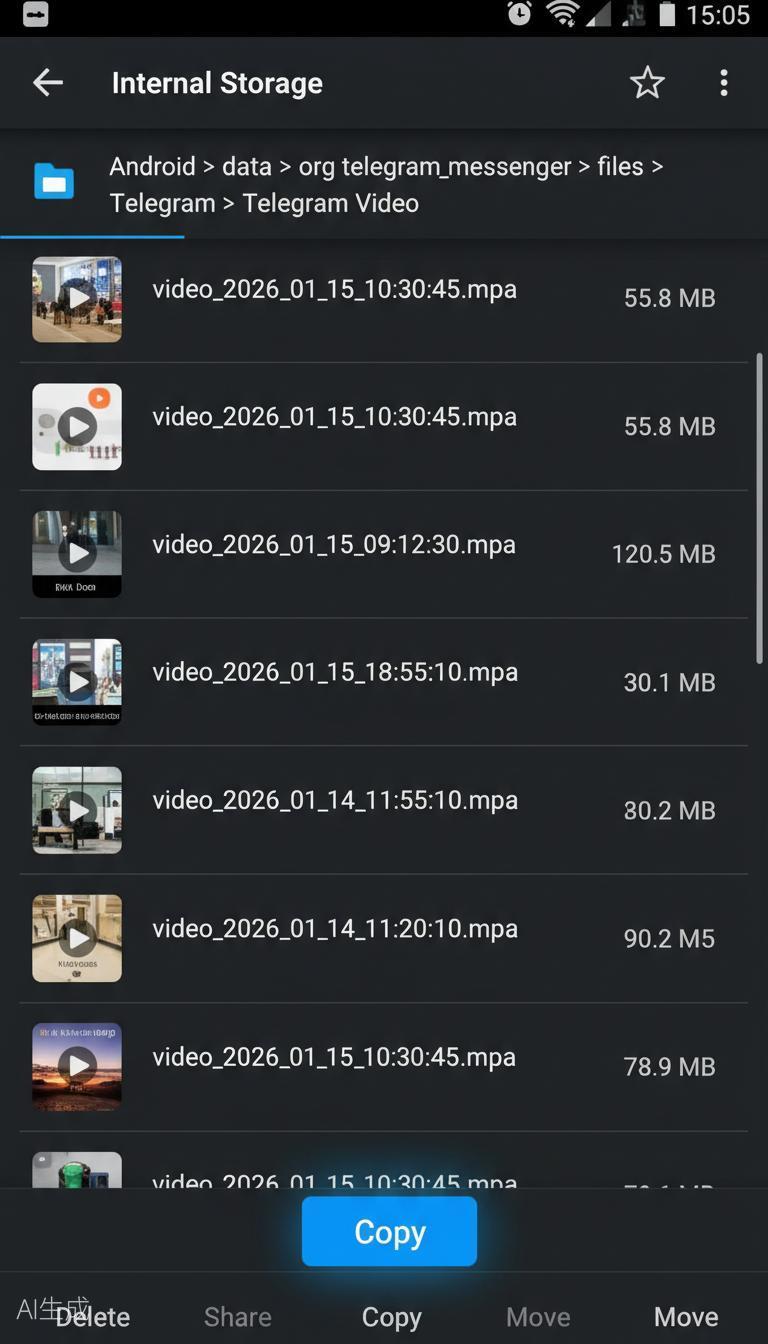
Note: After Android 11, the system will Android/data Directory access is stricter. You may need a manager that supports advanced file access, or you may not be able to access the directory due to system restrictions.
Advantages:
- There is an opportunity to process videos that have already been played.
- Not relying on third-party download websites.
- May preserve better image quality.
Disadvantages:
- Only suitable for Android.
- The path and permissions vary depending on the system version.
- File names are usually not intuitive and require self judgment.
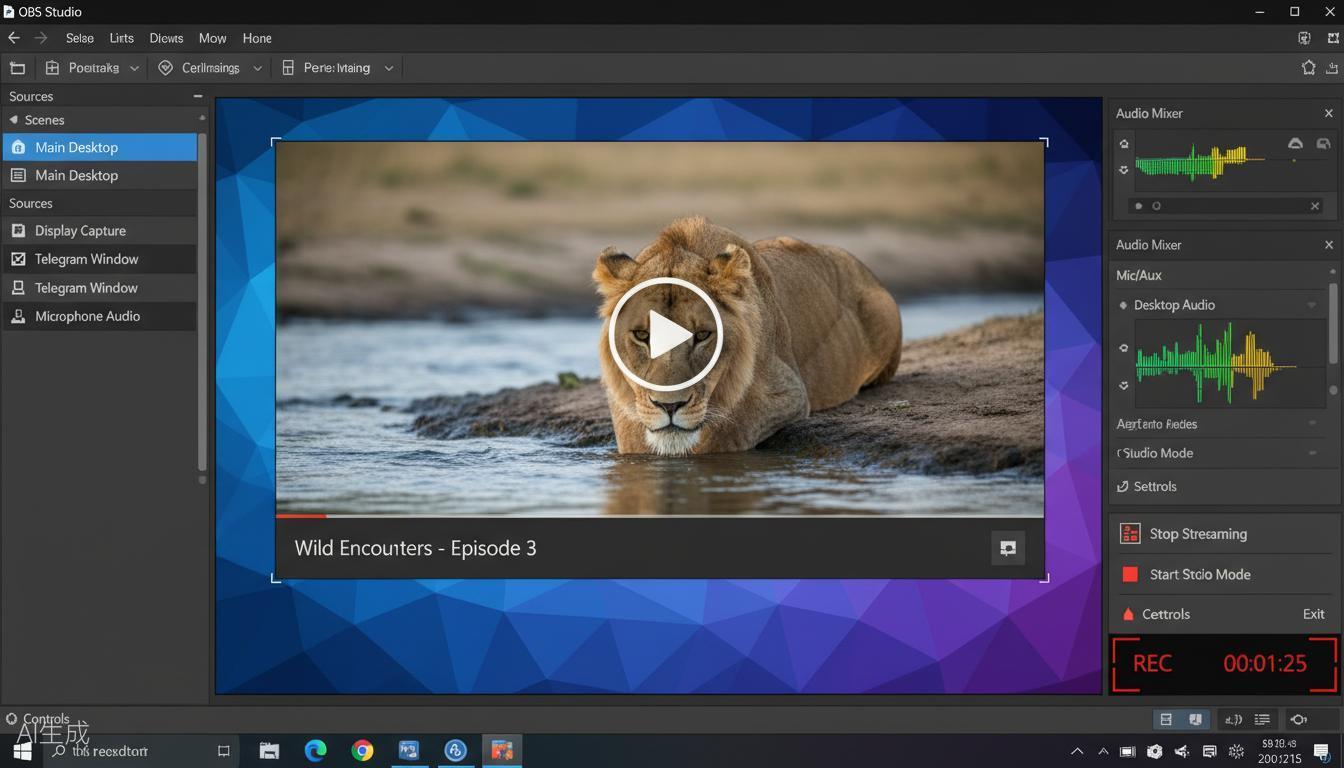
Method 7: Screen recording
When all download methods fail, screen recording is the most common alternative. It is not strictly a download, but it is almost applicable to any video that can be played.
Mobile operation:
- Open the system's built-in screen recording.
- Play videos in full screen on Telegram.
- Start recording before the video starts.
- Stop recording after the playback ends.
- Crop excess fragments in the album.
Computer operation:
- Windows can use Xbox Game Bar or OBS Studio.
- MacOS can use the system's built-in screen recording or QuickTime.
- Only record the video window to avoid entering personal chat content.
Advantages:
- Almost all devices can be used.
- Not affected by channel download restrictions.
- Suitable for emergency storage.
Disadvantages:
- The image quality may not be as good as the original file.
- May record interface elements or notifications.
- Long video recording takes a long time.
How to handle private channel videos
Private Telegram channel videos are usually not directly accessible by public link download tools. If you are a channel member, you can try in the following order:
- First, check if the administrator allows native saving.
- If forwarding is allowed, you can try forwarding to the download robot.
- If you are operating on the desktop, you can try compatible browser scripts.
- If all methods are restricted, only screen recording can be considered.
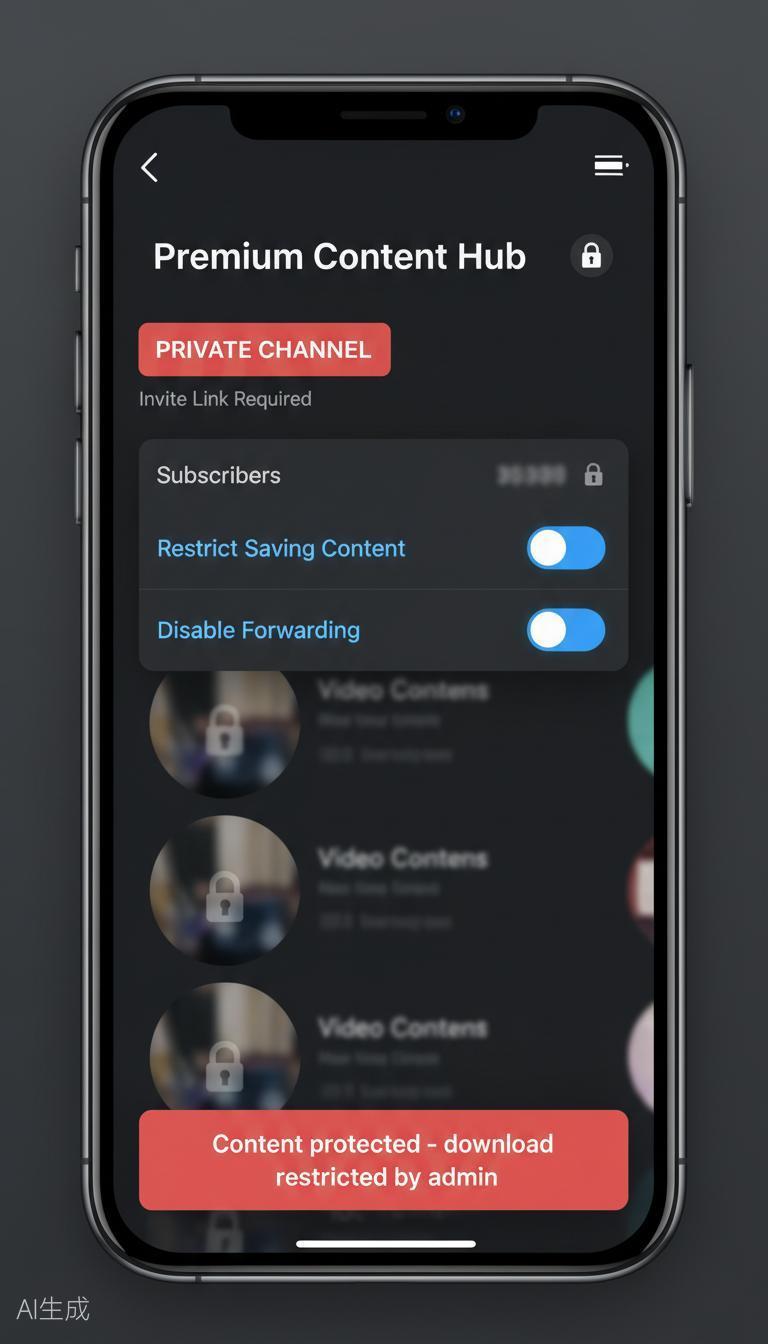
Important reminder: Private channel content usually has stronger access boundaries. Even if you can save it, it should only be viewed offline by individuals, and should not be disseminated, reposted, or leaked to unauthorized individuals.
Principles for Safely Downloading Telegram Videos
The more tools downloaded, the more risks there are. When selecting tools, it is recommended to follow the following principles:
Should do:
- Use the official features of Telegram as the first choice.
- Browser extensions are only installed from official stores.
- Do not provide login verification codes or account passwords when using robots.
- Choose tools with good reputation and update records.
- The downloaded video is for personal and reasonable use only.
Should not do:
- Do not install APK from unknown sources.
- Do not publicly disseminate private channel content.
- Do not use download tools that require excessive permissions.
- Do not submit personal account information to unfamiliar websites.
Why Telegram is suitable for video sharing
It is not by chance that Telegram is widely used by channels and communities to share videos.
Firstly, it supports large file transfers, making it suitable for sharing tutorials, courses, programs, and high-definition materials. Secondly, the size of channels and groups is large, suitable for creators and community operators to reach a large number of users. Again, Telegram's robot ecosystem is rich, and developers can build many tools around messages, files, and automated processes.
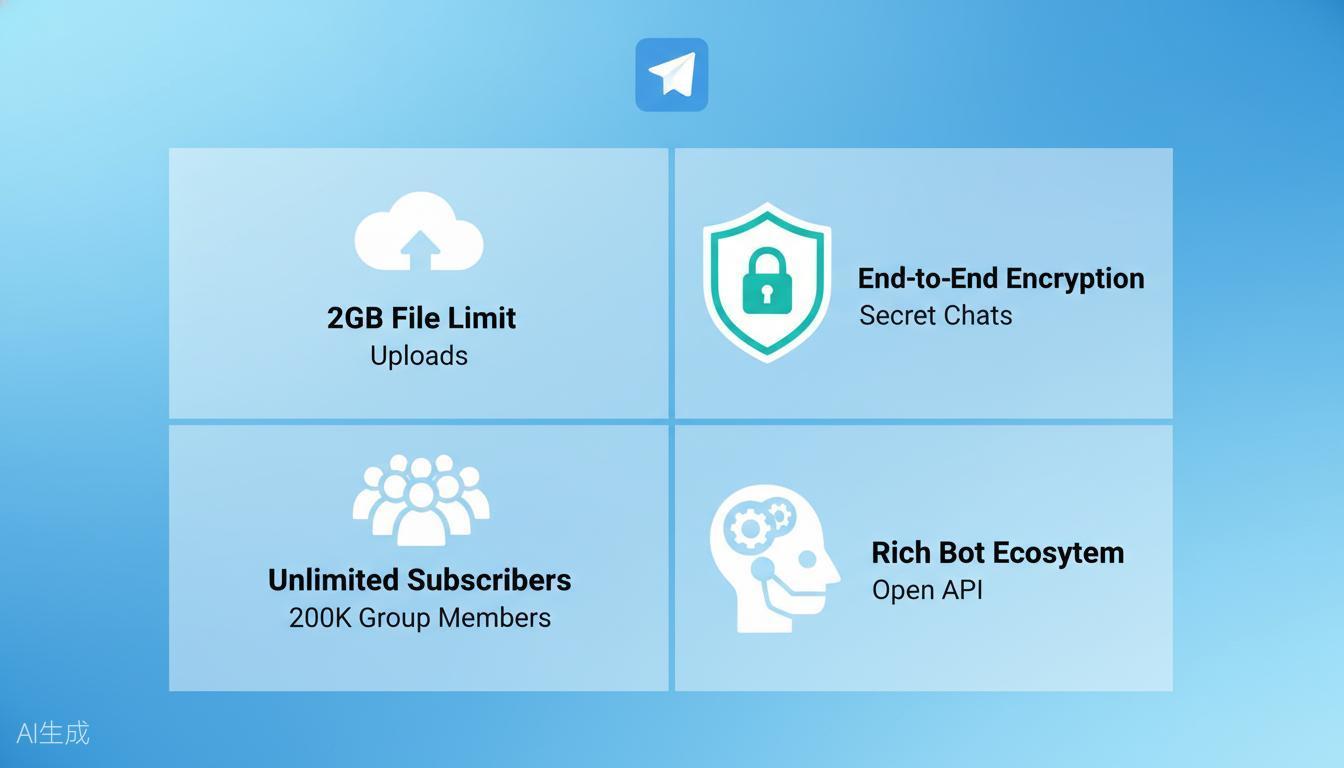
These characteristics make Telegram an important platform for video dissemination, and also make "how to save Telegram videos" a long-standing real demand.
Frequently Asked Questions
Can I download videos directly from Telegram without using any tools?
Okay. As long as there are no restrictions on saving channels or chats, you can use Telegram's built-in save function on Android, iPhone, desktop, or web version. This is the safest and most recommended way.
Why do some Telegram videos not have a save button?
The common reason is that the channel administrator has restricted the forwarding or saving of media, or it may be that the video has not been fully loaded, or the current client version does not display the corresponding entry.
Is it safe to download robots from Telegram?
Some well-known robots can be used normally, but you need to be cautious. Do not provide login verification codes, phone numbers, passwords, or other sensitive information to robots. If the robot asks you to jump to a suspicious website and enter account information, you should immediately stop using it.
Can I download videos from private Telegram channels?
If you are a channel member, you can try native saving, forwarding to robots, browser scripts, or screen recording. But private channel content should not be disseminated without authorization.
5. Will downloading Telegram videos result in a loss of image quality?
When using Telegram native save, desktop download, or directly saving the original file, there is usually no loss of image quality. Screen recording may experience a decrease in image quality due to recording resolution, frame rate, and compression settings.
Is downloading Telegram videos legal?
For personal offline viewing, the problem is usually small, but do not redistribute copyrighted content, leak private channel content, or infringe on the rights of creators. When it comes to copyright and privacy, local laws and platform rules should prevail.
Does Telegram notify others that I have downloaded a video?
Usually not. Telegram usually does not notify the sender that you have saved the video. But if you forward messages, publicly share files, or engage in other interactions, the other party may see the relevant behavior.
Summary
There is no unique answer to downloading Telegram videos, the key is to choose the appropriate method based on permissions and devices. Priority should be given to using built-in storage for public videos; If you want to operate within Telegram, you can try downloading the robot; Frequently using Telegram Web, consider browser extensions; If you don't want to install tools, you can use an online download website; When encountering private or restricted content, it is necessary to use scripts, caching, or screen recording more cautiously.
Regardless of which approach is chosen, safety and compliance should be given top priority. Only use trusted tools, do not submit sensitive account information, and do not spread others' private or copyrighted content, so that you can save the videos you truly need with peace of mind.
Related Reading
- How to download TikTok watermark free videos
- A useful YouTube video download tool for 2026
- How to save Instagram Reels and videos
About DownloadVideos365: DownloadVideos365 is a video download guide website that helps users understand how to save video content from different platforms more securely and efficiently.